

Managing your Organization
When you first make an account with Infisical, you also create a new organization where you are assigned theadmin role by default.
From there, you can invite external members to the organization and start creating projects to house secrets.
Projects
The Projects page shows you all the projects that you have access to within your organization. Here, you can also create a new project.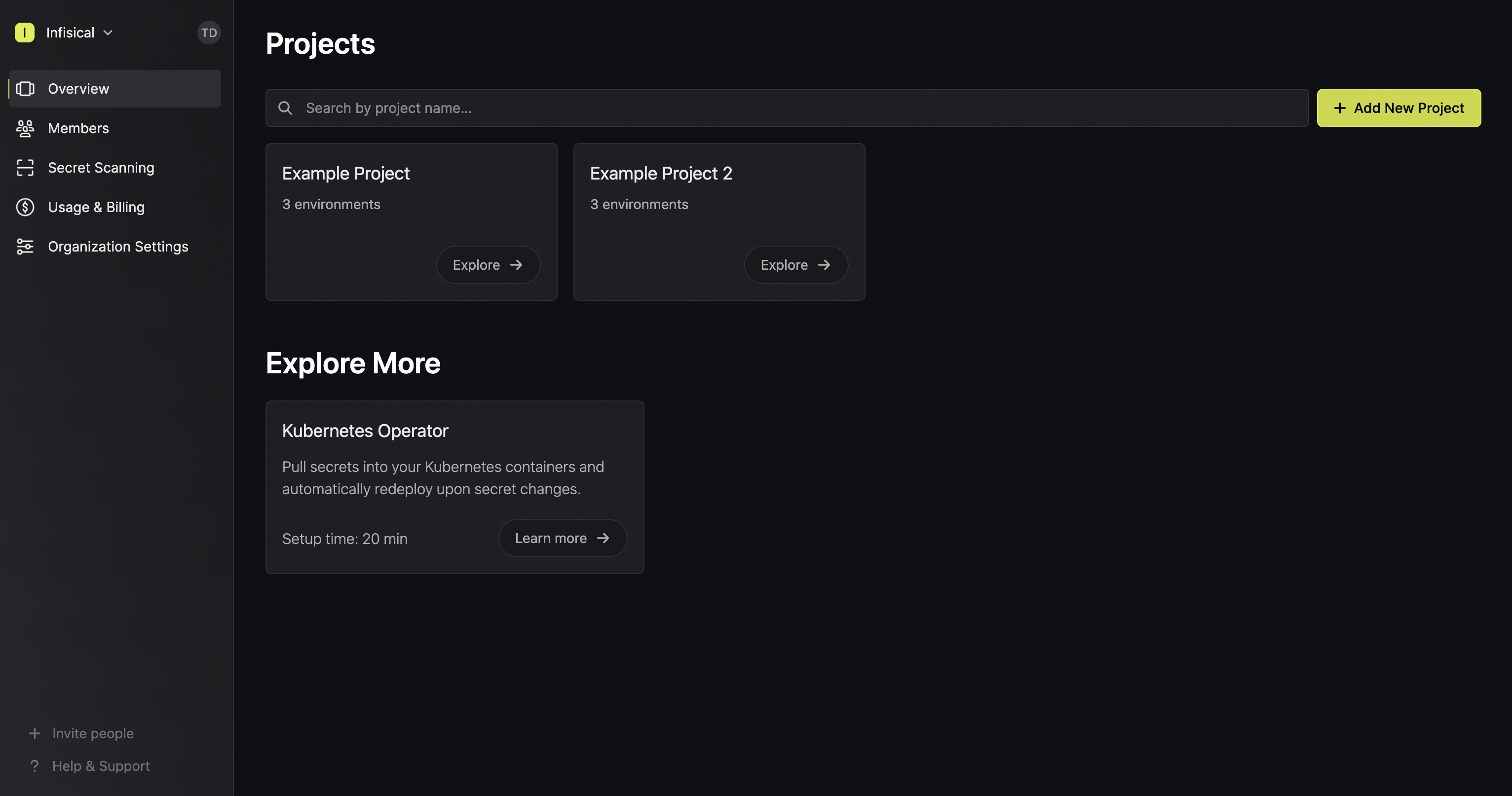
Members
The Members page lets you add or remove external members to your organization. Note that you can configure your organization in Infisical to have members authenticate with the platform via protocols like SAML 2.0.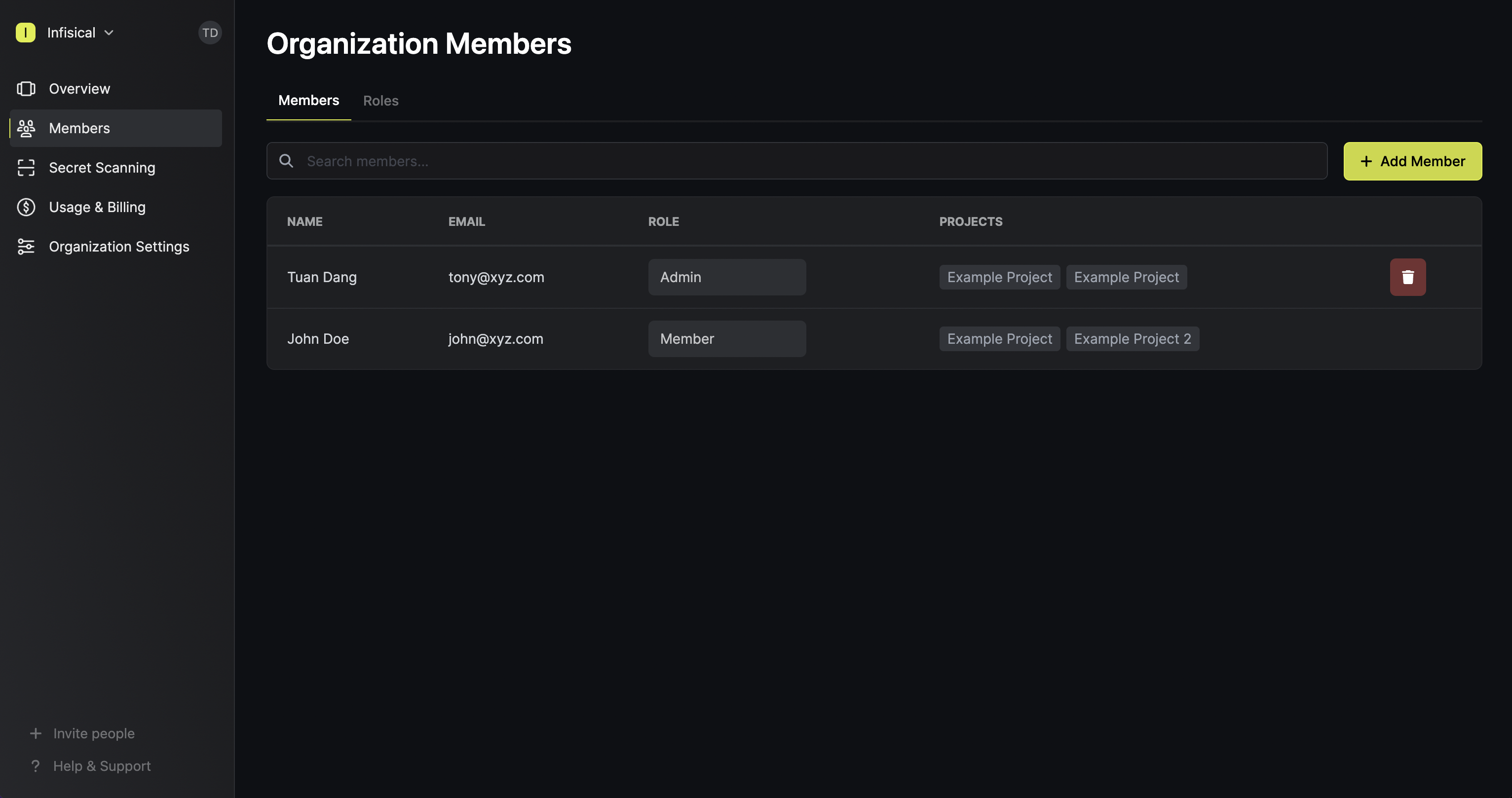
Managing your Projects
As mentioned before, projects house secrets which are further organized into environments such as development, testing and production. A project can be anything from a single application to a collection of micro-services that you wish to manage secrets for.Secrets Overview
The Secrets Overview screen provides a bird’s-eye view of all the secrets in a project and is useful for comparing secrets and identifying missing ones across environments.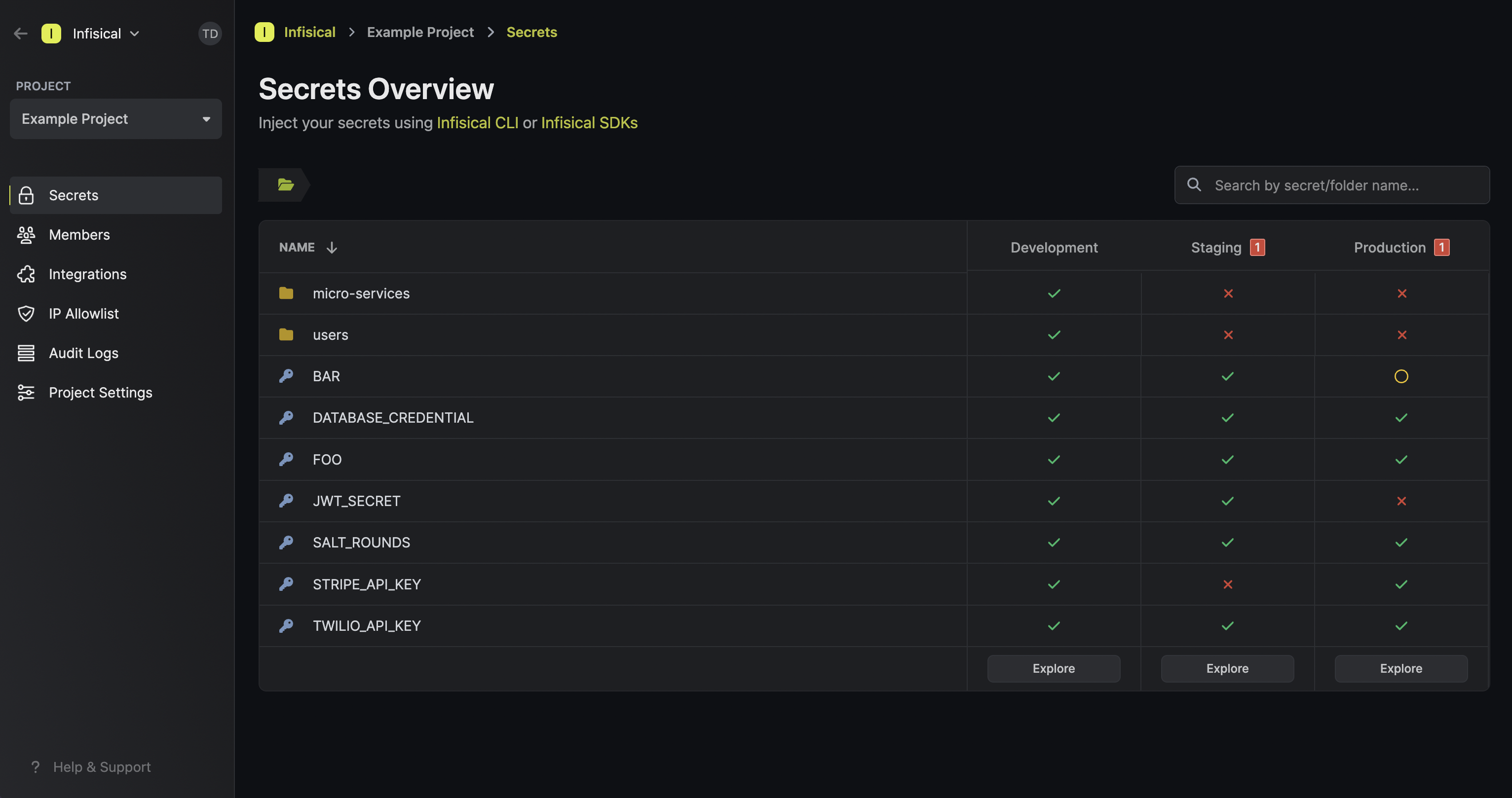 In the above image, you can already see that:
STRIPE_API_KEYis missing from the Staging environment.JWT_SECRETis missing from the Production environment.BARisEMPTYin the Production environment.
Dashboard
The secrets dashboard lets you manage secrets for a specific environment in a project. Here, developers can override secrets, version secrets, rollback projects to any point in time and much more.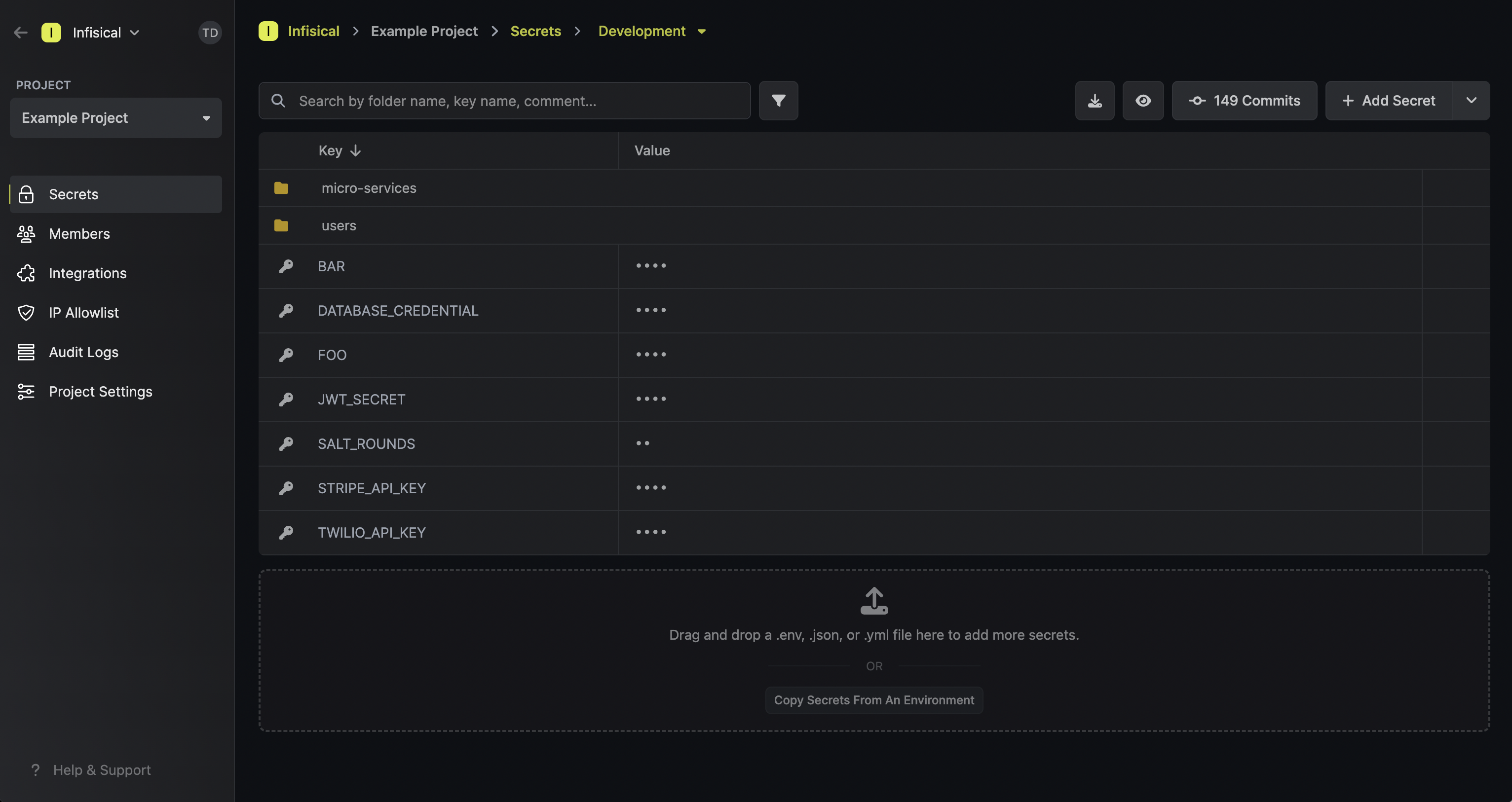
Integrations
The integrations page provides native integrations to sync secrets from a project environment to a host of ever-expanding integrations.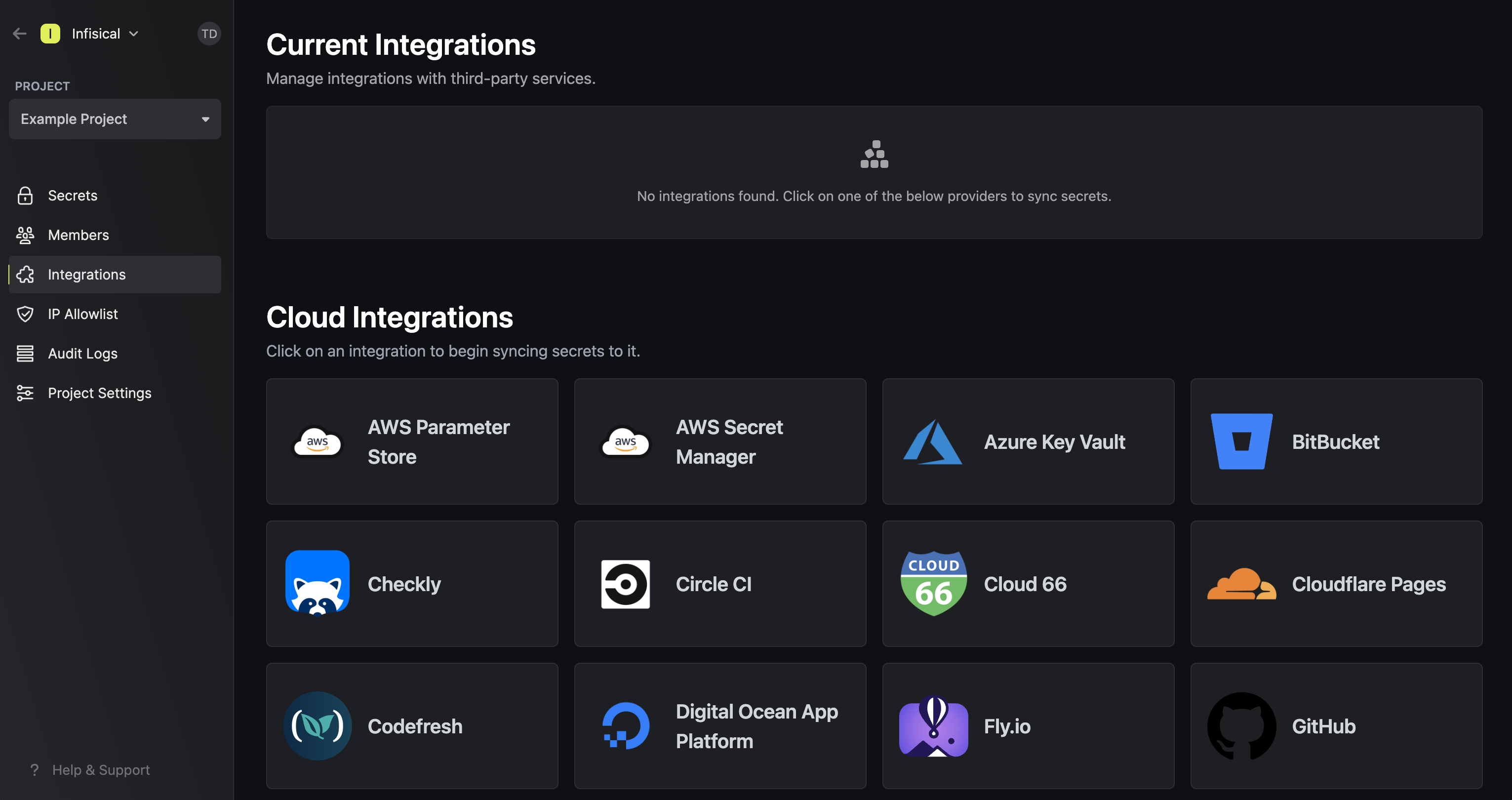
Members
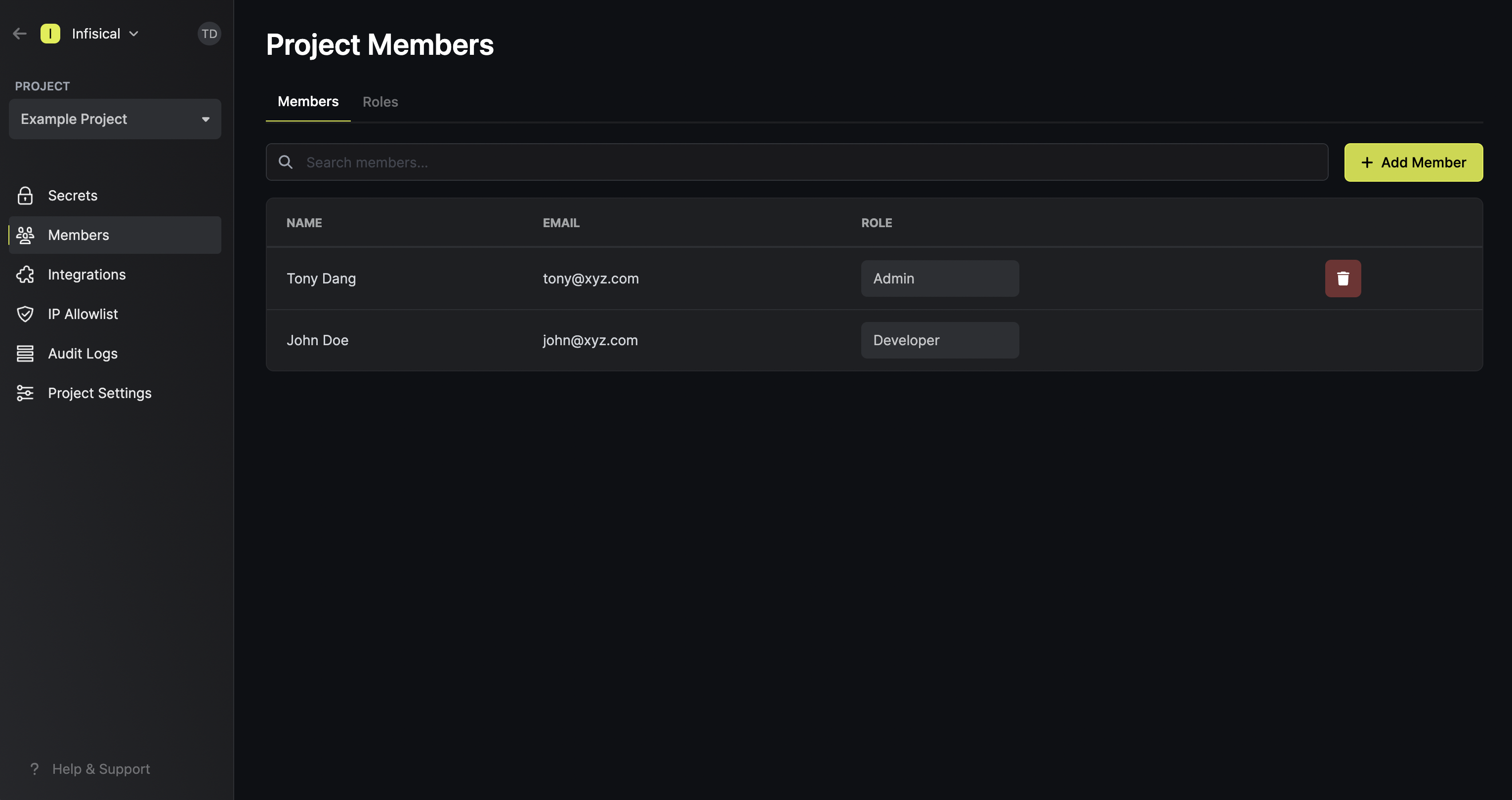
The members page lets you add/remove members to/from a project and provision them access to environments via roles. By default, Infisical provides theadmin, developer, and viewer roles
which you can assign to members.
 That’s it for the platform quickstart! — We encourage you to continue exploring the documentation to gain a deeper understanding of the extensive features and functionalities that Infisical has to offer.
Next, head back to Getting Started > Introduction to explore ways to fetch secrets from Infisical to your apps and infrastructure.
That’s it for the platform quickstart! — We encourage you to continue exploring the documentation to gain a deeper understanding of the extensive features and functionalities that Infisical has to offer.
Next, head back to Getting Started > Introduction to explore ways to fetch secrets from Infisical to your apps and infrastructure.